 Image to 3D
 Text to 3D / Image to 3D
AI 3D Model Generator
Turn a prompt or reference image into a 3D asset. Compare generators and export formats, then check your model before using it on the web, in a game, or for 3D printing.
Already have a model? Inspect your model →
Image to 3D  Game prop
  GLB asset
 From an idea to a usable 3D model
-
Choose a generator
Compare input types, export formats, and available plans.
Explore generators → -
Choose your input
Start with a focused prompt or a clear reference image.
Explore workflows → -
Check your export
Review geometry, materials, file size, and print risks.
Open the inspector →
Tool directory
Compare 3D AI generators
Compare input methods, export formats, API access, and free plan availability. Verify current terms with each provider.
Last verified: 2026-05-31. Read the comparison guide →
Meshy
API Free plan
Text-to-3D and image-to-3D workflows for game assets, products, and creators.
Tripo
API Free plan
Fast model generation with broad export format support.
Rodin
API Free plan
Detailed model generation with multiple export formats.
3D AI Studio
API Free plan
Model generation, API access, and file conversion workflows.
Hitem3D
API Free plan
Text and image inputs with common 3D export formats.
Hunyuan 3D
API Free plan
Tencent's model generation workflow for commercial assets and print preparation.
Choose your 3D workflow
Find a guide for your input, generator, or next step.
Text to 3D: start with a focused prompt
Describe one object, its shape, material, and style. Generate a first draft, then inspect the exported file.
Read the guideImage to 3D: start with a clear reference
Use a photo, sketch, or product image with a visible silhouette and simple background.
Read the guideHunyuan 3D: generate, export, inspect
Create the model in your Hunyuan3D workflow, then check the exported GLB or OBJ locally.
Read the guideCompare a Meshy alternative by its exports
Use identical inputs across generators and compare the resulting geometry, materials, and cleanup effort.
Read the guideCompare a Tripo alternative with local inspection
Fast generation helps only when the export works in your next tool. Compare real files before choosing a workflow.
Read the guideJPG to STL: inspect before printing
Generate a 3D draft from your image, export STL, then check the mesh in an editor and slicer.
Read the guideHave a model already? Check the exported file
A good preview can hide a dense mesh, missing textures, or open surfaces. Inspect the file before publishing, importing, or printing it.
Understand the models behind the results
Explore PBR materials, editable parts, and what image-to-3D approaches change in practice.
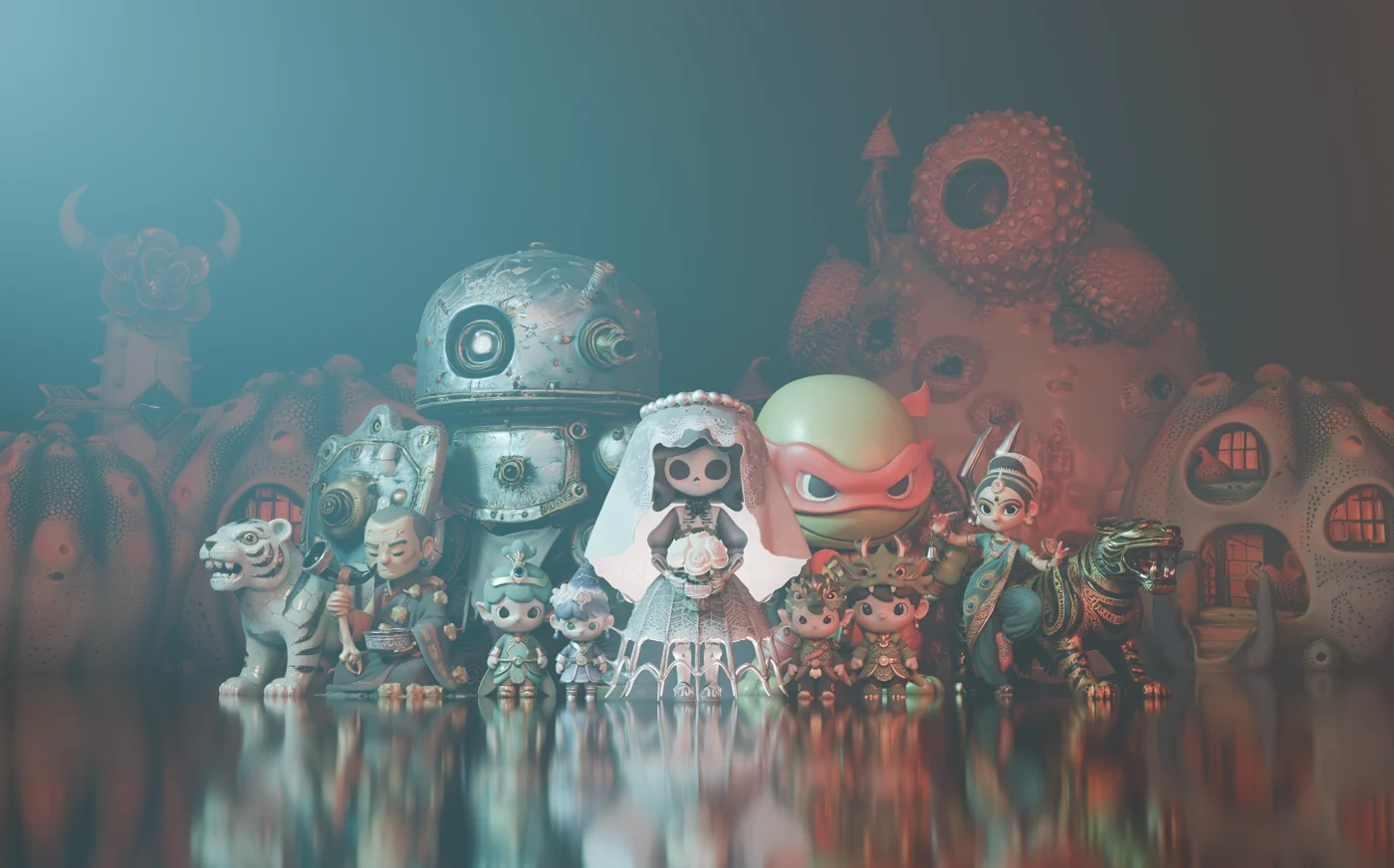
Hunyuan3D 2.1
Hunyuan3D 2.1 combines image-based shape generation with PBR material synthesis. The useful upgrade is not just more detail: surfaces can respond to changing light instead of carrying every highlight in a flat color texture.
Read the guide →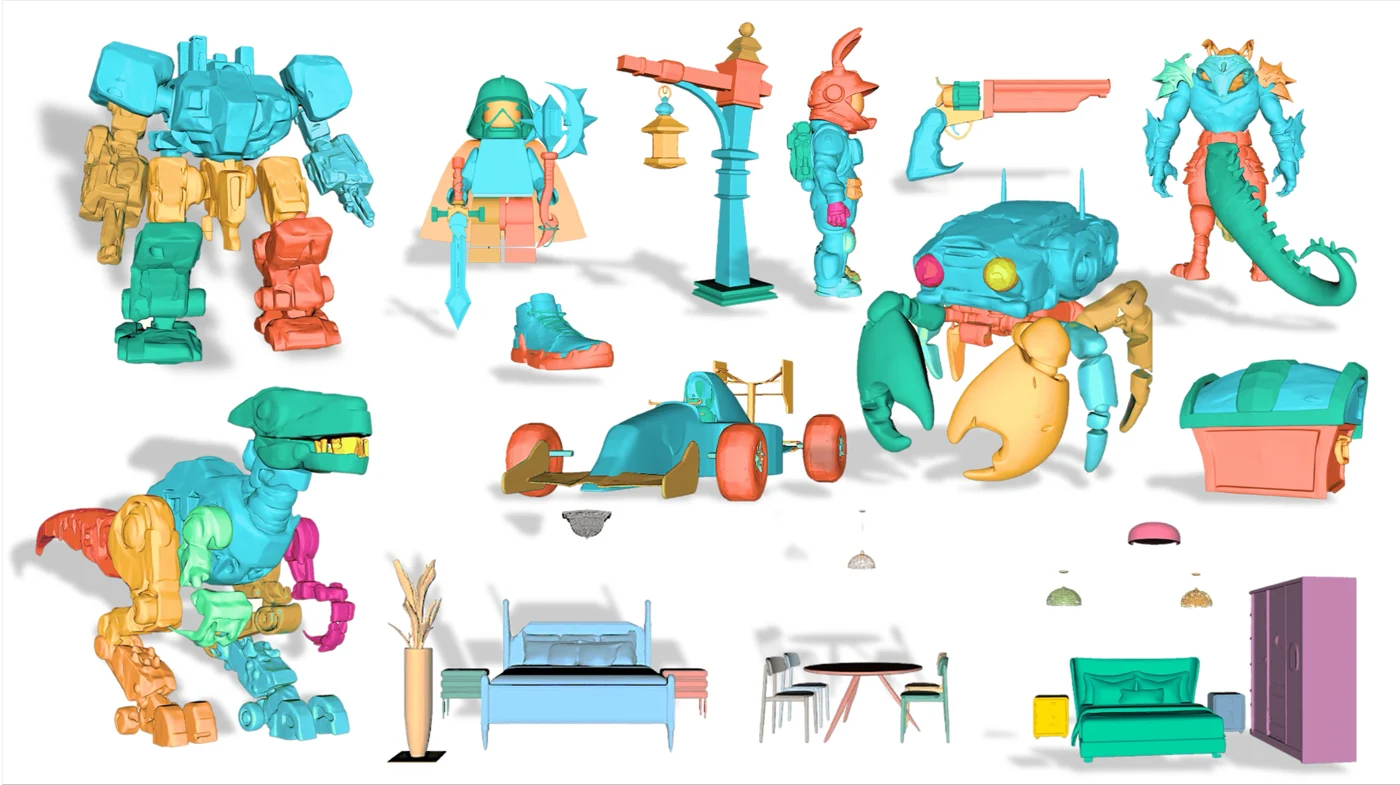
PartCrafter
PartCrafter generates an object as several independent meshes instead of treating the whole object as one inseparable shape. That makes part-level edits a first-class feature of the result, not an afterthought.
Read the guide →AI 3D model questions
Can I generate a model on this site?
The generation links open the connected 3D editor. This site helps you compare generators, choose a workflow, and inspect exported models.
Should I use text or an image?
Use text to explore an idea. Use a clear reference image when the object's silhouette and proportions matter.
What files can I inspect?
The local inspector accepts GLB, GLTF, OBJ, and STL. Dedicated viewers are also available for GLB, OBJ, and STL.
Are my model files uploaded?
No. The model files you select are parsed and rendered locally in your browser.